
Finding Specific Programs
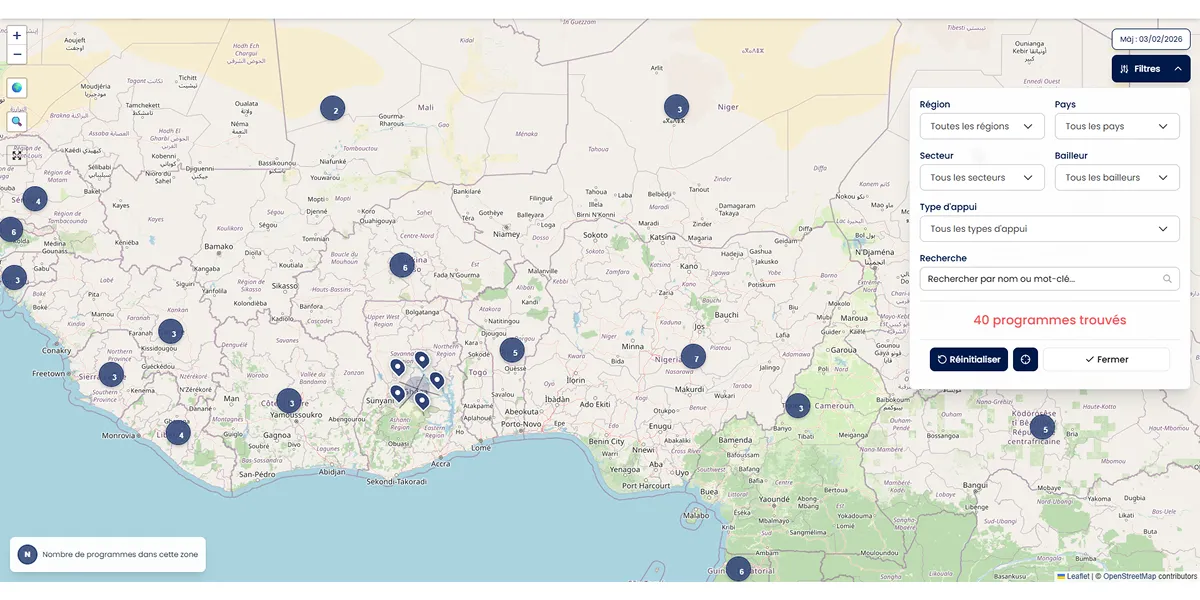
The filter panel allows you to refine your search among all programs displayed on the interactive map.
Opening the Filter Panel
On Desktop
- Locate the "Filters" button in the upper right corner of the map
- Click on this button
- The panel expands downward with all available criteria
On Mobile
- Locate the floating "Filters" button at the bottom of the screen
- Tap this button
- The filter panel opens to facilitate selection
Visual Indicators
- A pulsing red dot appears on the button when filters are active
- An "Active" badge indicates that dropdown filters are applied
- A "Search" badge indicates that a text search is in progress
The 5 Filters and Search Field
The panel offers 5 dropdown filters organized in a grid and 1 text search field.
1. Region
Purpose: explore programs in a large geographic area of Africa.
How to use it?
- Click on the "Region" filter
- Select one of the 5 African regions (West, East, North, Central, Southern Africa)
- The map automatically centers on the selected region
- Only programs in this region are displayed
Special feature: automatic zoom immediately centers the map on the chosen region.
2. Country
Purpose: view only programs from a specific country.
How to use it?
- Click on the "Country" filter
- Select a country from the alphabetical list
- The map displays only programs from this country
Special feature: if you first selected a region, the country list is automatically filtered to show only countries in that region.
3. Sector
Purpose: filter programs by economic intervention domain.
How to use it?
- Click on the "Sector" filter
- Select an activity sector from the list
- The map displays only programs operating in this sector
4. Funding Organization
Purpose: view all programs funded by a specific organization.
How to use it?
- Click on the "Donor" filter
- Select a donor from the list (sorted by acronym)
- The map displays only programs funded by this organization
5. Support Type
Purpose: filter programs by the nature of support provided.
How to use it?
- Click on the "Support Type" filter (spans the full width of the panel)
- Select a type from the list
- The map displays only programs of this type
Text Search
Purpose: search for a program by keyword in its name or description.
How to use it?
- Locate the input field with the magnifying glass icon at the bottom of the panel
- Type one or more keywords
- The search applies automatically in real time
- Matching programs are displayed on the map
Search Examples
- "agriculture": finds all programs mentioning agriculture
- "GIZ": displays GIZ programs
- "entrepreneurship": finds programs related to entrepreneurship
Combining Multiple Criteria
The power of the filter system lies in combining multiple criteria simultaneously.
How to combine filters?
- Select your first criterion (for example: Region = West Africa)
- Add a second criterion (for example: Sector = Agriculture)
- Add more criteria if needed
- The map updates automatically after each selection
Relevant Combination Examples
- Region + Sector + Donor: "What are GIZ's agricultural programs in West Africa?"
- Country + Support Type: "What technical assistance programs exist in Senegal?"
- Sector + Donor: "What digital programs does AFD fund?"
Tip: start with the broadest filters (Region, Country) before refining with thematic filters (Sector, Donor, Support Type).
Real-Time Results
With each filter change, the system automatically updates:
- Map markers: only matching programs remain visible
- Program counter: the total number of programs found is displayed at the bottom of the filter panel
Tip: if the result shows "0 programs found", gradually remove filters to broaden your search.
Resetting Filters
The "Reset" button in the panel's action bar removes all filters and the search.
Effect
- All filters are reset to default
- The search field is cleared
- The map returns to the default view
- All programs are displayed again
Closing the Panel
To close the filter panel, click the "Close" button in the action bar at the bottom of the panel.
Your filters remain active even after closing: the "Filters" button retains its visual indicators if criteria are applied.
Search Tips
Search by Acronym — Type a donor's acronym (e.g., "AFD", "GIZ", "USAID") in the search field to quickly find their programs.
Progressive Exploration — Start broad with a region, observe concentration areas, then refine with country and sector.
Compare Donors — Select a first donor, observe their intervention zones, reset, then select a second donor to compare.
Finding Opportunities — Combine Region + Sector + Support Type to identify programs that precisely match your profile.
📑 Table of Contents