
Understanding Markers
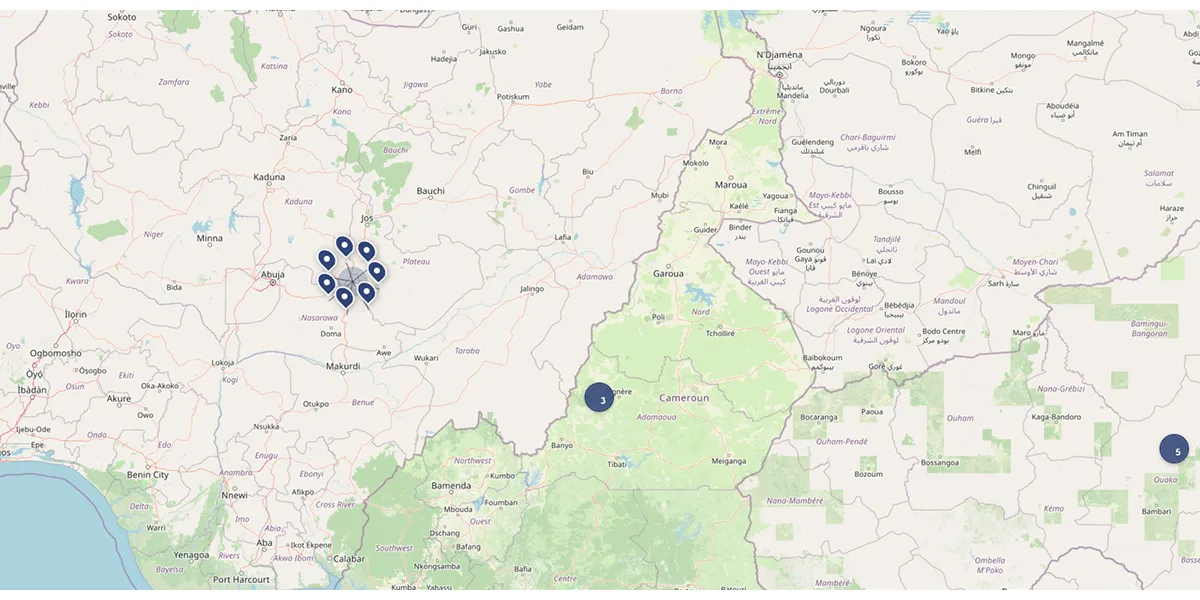
Markers on the map represent support programs for the African private sector. Each marker corresponds to a program located in one or more countries.
What is a marker?
Each drop-shaped marker represents the geographic location of a program. All markers have the same appearance: a dark blue pin with a white dot in the center and a white border.
Information represented
- Position: the program's country of intervention
- Size: uniform for all programs
Tip: click directly on any marker to see the program details.
Clusters (groupings)
When several programs are located in the same geographic area, they automatically group together in a numbered circle called a "cluster".
How does clustering work?
- At a zoomed-out view (low zoom), geographically close programs merge into a circle
- The number inside indicates how many programs are grouped in that area
- The more you zoom in, the more circles separate to reveal individual programs
Examples
- A circle with "12" = 12 programs in that area
- A circle with "5" = 5 programs in that area
- No circle = individual program visible
Cluster appearance
All clusters have the same appearance: a semi-transparent dark blue circle with the number of programs in white. The circle size varies slightly depending on the number of grouped programs.
Legend
A small panel in the lower left corner of the map displays the cluster icon with its explanation, to help you understand these groupings.
Clicking on a cluster to zoom
Clusters are interactive: click on them to automatically zoom into the area and see programs separate.
Navigation example
- Initial view: cluster "45" on Dakar
- 1st click: the map zooms, the cluster separates into several smaller clusters
- 2nd click on a cluster "8": additional zoom
- Individual programs appear as markers
Tip: you can also zoom manually with the mouse wheel or +/- buttons to gradually separate clusters.
Clicking on a marker to see the popup
Each individual marker is clickable and opens an information window (popup).
How to see the details?
- Locate an individual marker on the map
- Click on it
- A white window opens above the marker
- The program's main information is displayed
Tip: if markers are too close together, zoom in first to facilitate clicking.
Popup content
The popup displays a program summary to quickly evaluate its relevance.
Displayed information
- Program name: full title at the top of the window
- Description: 2-line summary of the main objective
- Location: country of intervention and region (e.g., "Senegal - West Africa")
- Sectors: up to 2 sectors displayed, with indication if there are more
- Donors: up to 2 donors (acronyms if available), with indication if there are more
- Target audiences: the program's beneficiaries
- "View details" link: link at the bottom of the popup to the program's full page
Closing the popup
- Click on another area of the map
- Click on another marker (the previous popup closes automatically)
Tip: to quickly compare several programs in the same area, click successively on nearby markers.
Exploring dense areas
Some areas concentrate many programs (capitals, economic hubs). Here's how to explore them effectively.
Method 1: Progressive zooming
- Identify a large cluster
- Click on it to zoom
- Continue clicking on remaining clusters until you reach individual markers
Method 2: Filters + zoom
- Apply filters first (sector, donor, support type)
- The number of programs decreases
- Use the magnifier button to adjust the view
- Remaining markers are more spread out and easier to click
Tip: start by filtering if you're looking for a specific type of program in a dense area. This avoids having to click on dozens of markers.
Practical tips
Quick access to the sheet — Click on a marker then follow the "View details" link to access all program information.
Identifying hubs — Large clusters indicate areas with high program concentration. Capitals and economic centers generally concentrate the most programs.
Exploring systematically — For a complete exploration of a country: filter by country, use the magnifier button, then zoom and click on each marker.
📑 Table of Contents