
Navigating the Map
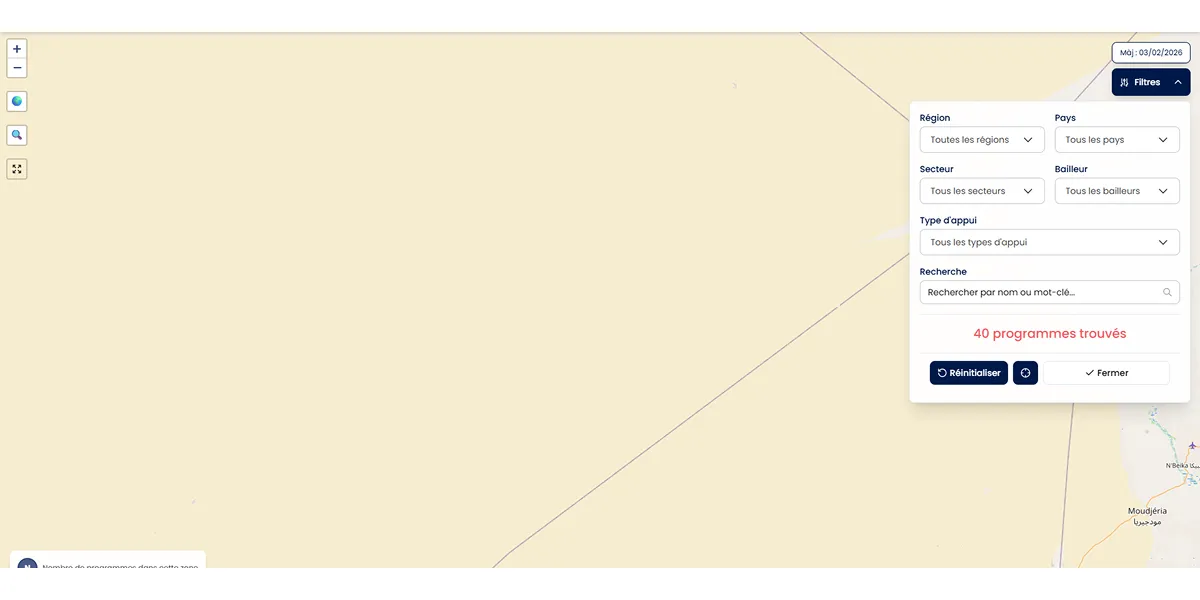
The interactive map offers several navigation methods to explore support programs for the African private sector.
Zooming In and Out
On Desktop
- Mouse wheel: scroll up to zoom in, scroll down to zoom out
- + and - buttons: click the zoom buttons in the upper left corner of the map
On Mobile
- Pinch the screen: bring two fingers together to zoom out, move them apart to zoom in
- + and - buttons: tap the zoom buttons in the upper left corner
Tip: zoom in enough so that the clustering circles separate and reveal individual programs.
Moving the View
On Desktop
- Click and drag: hold down the left mouse button and move the mouse in the desired direction
- The map moves smoothly while you hold the click
On Mobile
- Swipe your finger: touch the screen and drag your finger in the desired direction
- The map follows your finger movement in real time
The 3 Control Buttons
Three buttons located in the upper left corner help you navigate the map.
Globe Button — Return to Overview
The button with the 🌍 icon allows you to instantly return to the default view.
Usage
- Click the 🌍 button
- The map re-centers on the overview of Africa
- The zoom returns to the default level
When to use it?
- After exploring a specific area and wanting to return to the whole map
- When you are lost in navigation
- To reset the view after applying regional filters
Good to know: when you select a region in the filters, the button title changes to indicate "Return [region name]". It then brings you back to that region's view.
Magnifier Button — Fit to Displayed Programs
The button with the 🔍 icon automatically adjusts the zoom and position of the map to display all visible programs.
Usage
- Apply your search filters
- Click the 🔍 button
- The map automatically adjusts the framing to display all filtered programs
When to use it?
- After applying filters to see all results at a glance
- To center the map on programs in a specific country or region
- When you want an overview of the filtered programs
Expand Button — Fullscreen Map
The button with the expand icon (four arrows) opens the map in a dedicated fullscreen page.
Usage
- Click the expand button
- A new page opens with the fullscreen map
- You benefit from a maximized view for in-depth exploration
When to use it?
- When the embedded map on the homepage is too small for your needs
- For in-depth exploration of programs by geographic area
Automatic Regional Zoom
When you select a region in the filter panel, the map automatically centers on that geographic area.
The 5 Available African Regions
- West Africa: Senegal, Mali, Ivory Coast, Nigeria, etc.
- East Africa: Kenya, Tanzania, Uganda, Rwanda, etc.
- North Africa: Morocco, Algeria, Tunisia, Egypt, etc.
- Central Africa: DRC, Cameroon, Gabon, etc.
- Southern Africa: South Africa, Namibia, Botswana, etc.
How It Works
- Open the filter panel
- Select a region from the Region filter
- The map automatically centers on that region with appropriate zoom
- Navigation bounds adjust to the region
Tip: to return to the full Africa view, reset the filters or click the 🌍 button.
Navigation Limits
The map is configured to stay centered on the African continent.
Visible Areas
- The map covers the entire African continent
- Scroll limits prevent navigating too far from the continent
- When a region is selected, limits tighten around that area
Zoom Levels
- Minimum zoom: overview of the entire African continent
- Maximum zoom: detailed view of a city or specific area
Navigation Tips
Exploring a Dense Area — In capitals and major cities, many programs are concentrated. Zoom in progressively so that the clustering circles separate.
Comparing Two Regions — Select a first region in the filters, observe the programs, then change the region. The map automatically re-centers.
Smooth Navigation — On desktop, use the mouse wheel to zoom and click-drag to move simultaneously. This is the fastest method.
Mobile in Landscape — On smartphone, switch to landscape mode for a better overview of the map.
📑 Table of Contents