
Discovering the Interactive Map
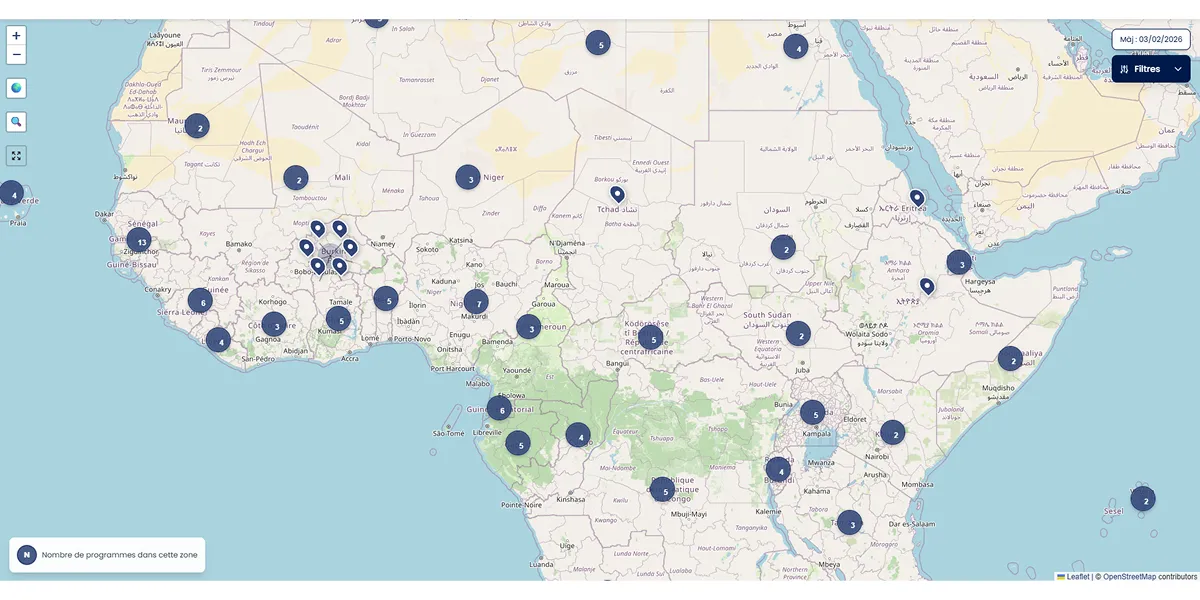
The interactive map allows you to visualize all support programs for the African private sector. Each marker represents an intervention program located in one or more African countries.
What is the interactive map for?
The interactive map is a geographic visualization tool that allows you to:
- Explore all support programs by country and region
- Filter programs according to your criteria (region, country, sector, funder, support type)
- Identify priority intervention zones in Africa
- Access detailed information about each program quickly
Where to find the interactive map?
The map is available in two places:
- Homepage: an embedded version at the center of the page to facilitate discovery
- Full-screen map: accessible via the expand button on the map, it offers a maximized view for in-depth exploration
Overview of visual elements
Markers on the map
Each drop-shaped marker represents a program. Clicking on it displays a popup with a summary: program name, country, region, sectors, funders and a link to the detailed sheet.
Clusters (groupings)
In areas with high concentration of programs, markers are automatically grouped into numbered circles. The number indicates how many programs are in the area. Click on a cluster to zoom in and see individual programs.
Legend (lower left corner)
A small panel displays the cluster icon with its explanation to help you understand the groupings.
Last update date (upper right corner)
A badge shows the date of the last data update on the map.
Navigation buttons (upper left corner)
Three buttons help you navigate:
- Globe button: re-centers the map on the Africa overview
- Magnifier button: automatically adjusts the zoom to display all visible programs
- Expand button: opens the map in full screen on a dedicated page
Filters button (upper right corner)
A button opens a filter panel allowing you to search programs by multiple criteria. The panel also shows the number of programs found.
Differences between desktop and mobile
Desktop version
- Map with all elements visible simultaneously
- Dropdown filter panel above the map
- Smooth navigation with mouse wheel
- Controls permanently visible
Mobile version
- Map optimized for touch display
- Filters accessible via a floating button at the bottom of the screen
- Intuitive touch navigation (pinch to zoom, swipe to move)
Detailed guides
To master each feature of the interactive map, consult our specialized guides:
Navigation
Learn how to zoom, pan the map and use the control buttons. See the guide Moving around the map
Filters
Discover how to use the 5 filters and search field to precisely find the programs you're interested in. See the guide Finding specific programs
Markers
Understand the meaning of markers, clusters and how to access detailed information about each program. See the guide Understanding markers
Practical tips
Quick exploration — Use the Region filter to discover programs in a specific geographic area. The map automatically re-centers on the chosen region.
Targeted search — Combine multiple filters to refine your search. For example: Region + Sector + Funder to see agricultural programs funded by a specific organization.
Dense areas — Click on clusters (numbered circles) to zoom in and see individual programs.
Quick access — Click on a marker to see the program summary and access its detailed sheet via the "View details" link.
📑 Table of Contents